

B50 Volume Issues - Need To Upgrade Firmware


If your B50 meet volume issues, you can upgrade to the 0063-6f1ba478 firmware version to solve the issues.
The Update Tool is only available for B50、BP50
 Before starting, you need…
- Prepare a Windows computer(Win 10 above, includes Win10)
- Prepare corresponding power adapter
- USB A to USB C data cable
*USB-C to USB-C cables are available, but for firmware version .52 or lower, use a USB-A to USB-C cable.
Step 1: Download the Update Tool
Click here to download the update tool, and uncompress the folder.
Step 2: Connect Your Devices
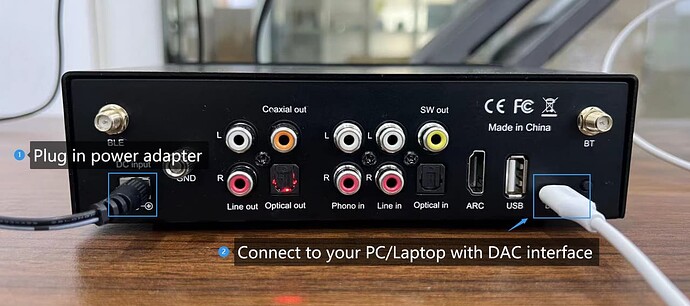
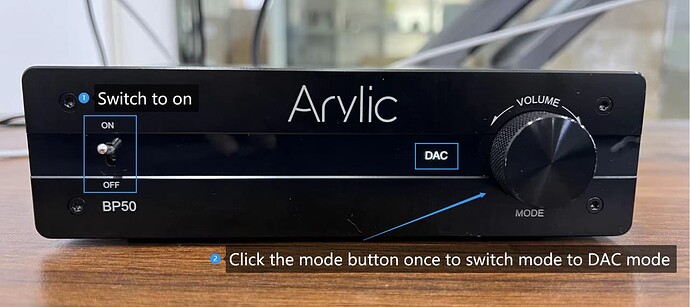
Check if you computer audio output option pops up with “Up2Stream USB Audio”
If yes, the device is connected successfully.

If not, please confirm your USB cable is data transmit avaiable, and use USB A to USB C data cable and try again.
Step 3: Run Arylic Update Tool
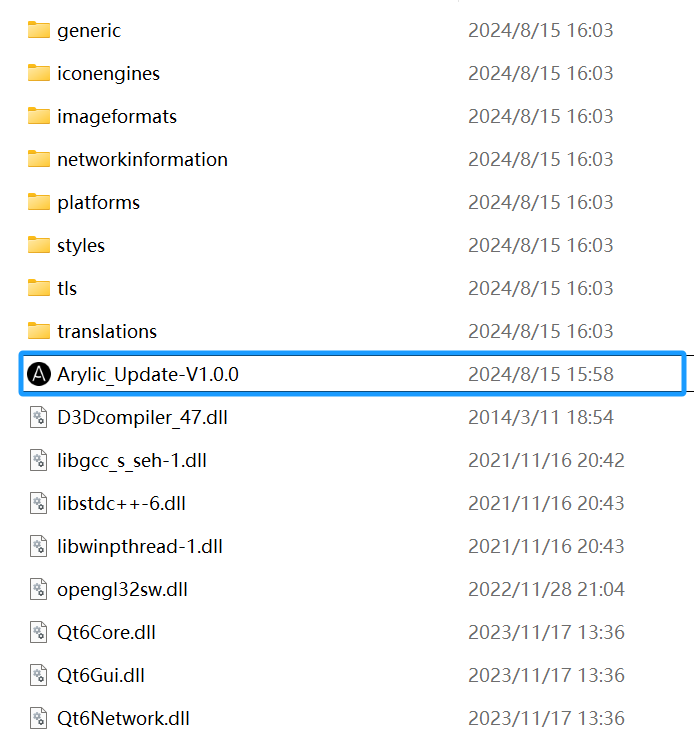
Open the Arylic Update Tool folder your just uncompressed, and click the .exe file to run the program:
You will see the program recognize your model and your current version, choose the firmware version you are going to update and click update:
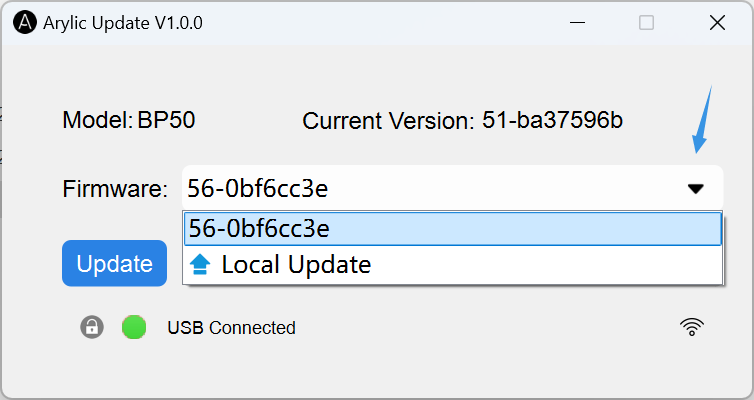
Ensure your PC/laptop is connected to the network. The update tool will automatically fetch the latest firmware list via network.
*The local update is for special scenario to update with the local firmware file.
Wait about 30 Secs to finish the update
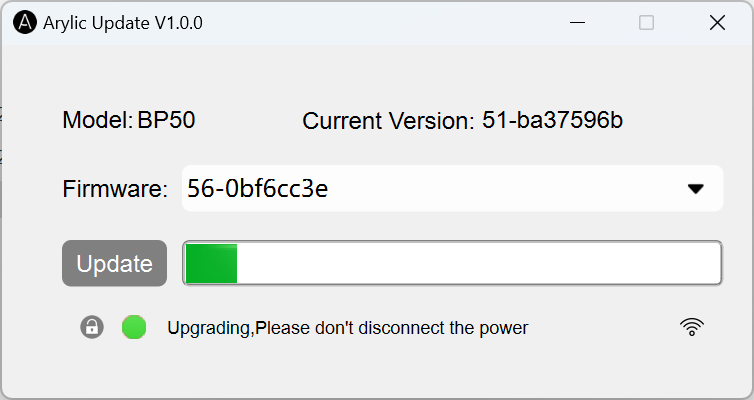
Very Important
- Do not power off or disconnect the USB cable during the update.
- Do not close the program during the update.
When finished, the device will reboot automatically. You will see the Led turn to standby and turn back.
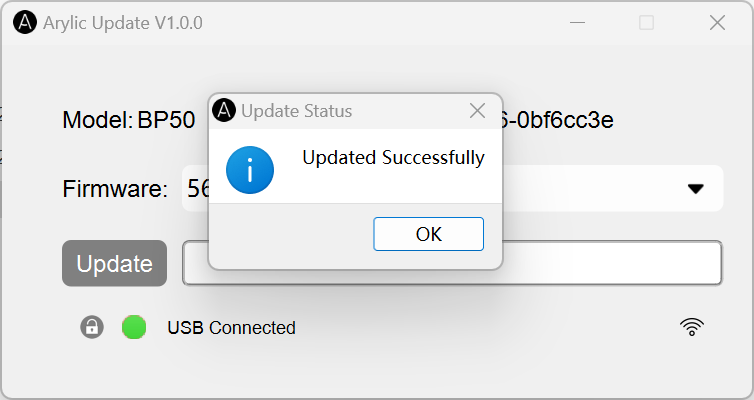
When the Led turn back, everything is done, you can start to use now.
You can check the current version with this update tool or in GO CONTROL APP to see if the update is successful.
- This is Windows software ONLY(support Win 10 above, includes Win10)
- Make sure your USB cable is data transmit available, not a charging cable
- Better use USB A cable to USB C cable.
- The Arylic Update Tool is now available for B50、BP50
- Do not power off or disconnect the USB cable during the update.
- Do not close the program during the update.
If the upgrading is failed for any reason, please don’t cut power or disconnect USB, but just try to upgrade again.
If you encounter any issues when updating, feel free to contact us at info@arylic.com


