

LP10 Unable to Connect to WiFi via Go Control App


If your LP10 cannot connect to the network through the Go Control App, please follow the steps below. This guide covers all common causes and should help you get connected within a few minutes.
1. Check Phone Compatibility and Required Permissions
System Requirements
-
iOS 15 or above
-
Android 10 or above
Older systems may prevent the app from initiating the pairing process properly.
Enable Necessary Permissions
-
Bluetooth – required for device discovery
-
Location Services – required on Android, recommended on iOS
If these permissions are disabled, the app may not detect your LP10.
2. Verify Your WiFi Network Settings
Same Network Requirement
Ensure your phone and LP10 are connected to the same WiFi during setup.
Signal Strength
Weak WiFi signals can cause pairing failures.
Try placing the LP10 within 2 meters (6 ft) of your router during setup.
3. Reset LP10 to Pairing Mode
If the device does not enter pairing mode or repeatedly fails:
Press and hold the “–” and “+” buttons for 5 seconds.
→ The WiFi LED will flash white, indicating the device is ready for network setup.
4. Restart Devices
Before your next pairing attempt:
-
Restart LP10
-
Restart your router
-
Restart your mobile phone
Then open the Go Control App again and retry WiFi setup.
5. Use the Backup Method: Wired Setup (Ethernet)
If wireless setup continues to fail, you can configure the LP10 using a wired connection:
-
Connect LP10 to your router with an Ethernet cable.
-
Open the Go Control App. You should see the device and its IP address.
-
Go to Device → tap the settings icon at the top right → check the device IP.
-
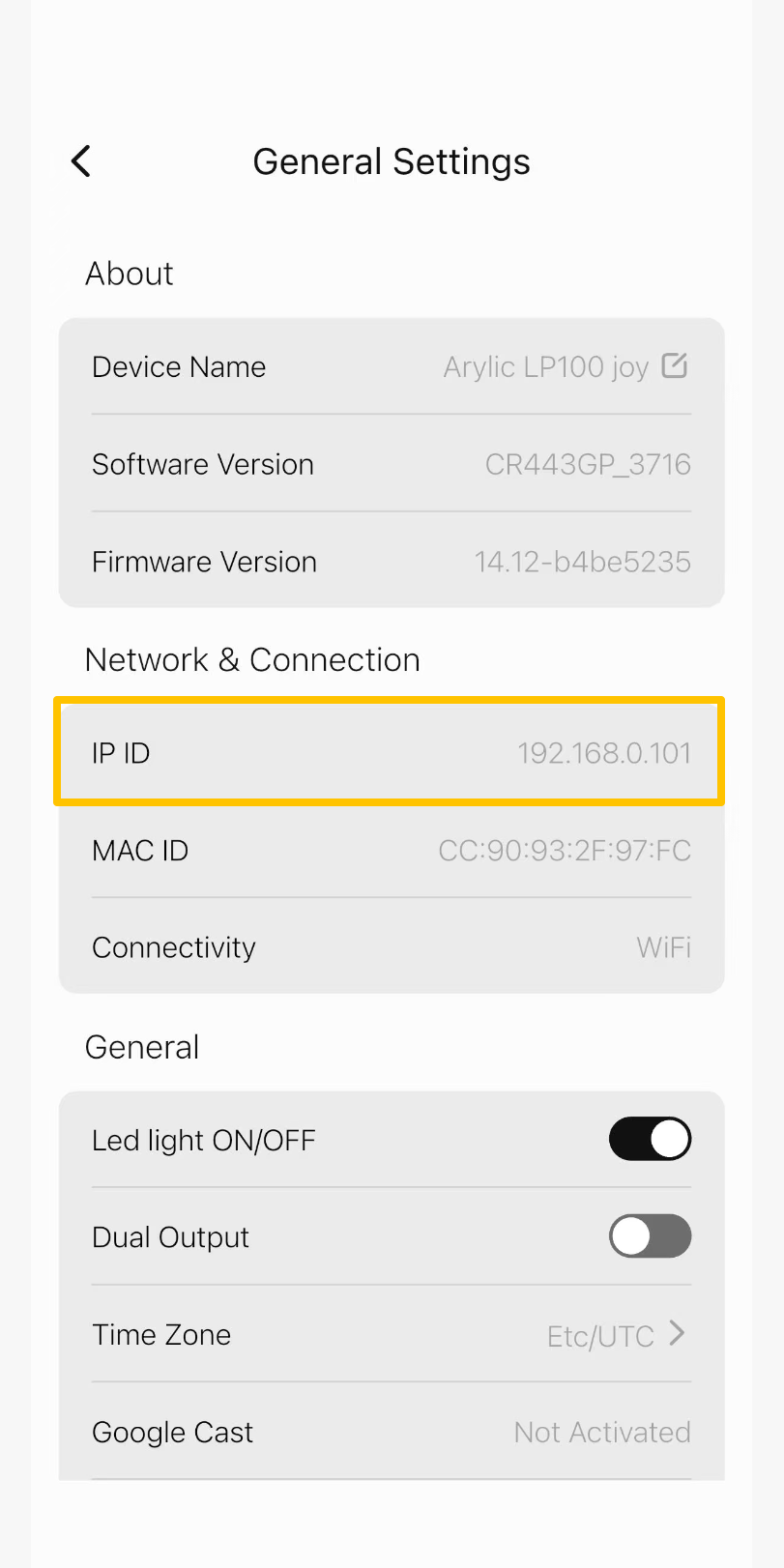
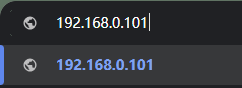
3. Enter the IP address in your web browser to access the Web Control interface.
4. Select the WiFi network you want to connect to and enter the password.
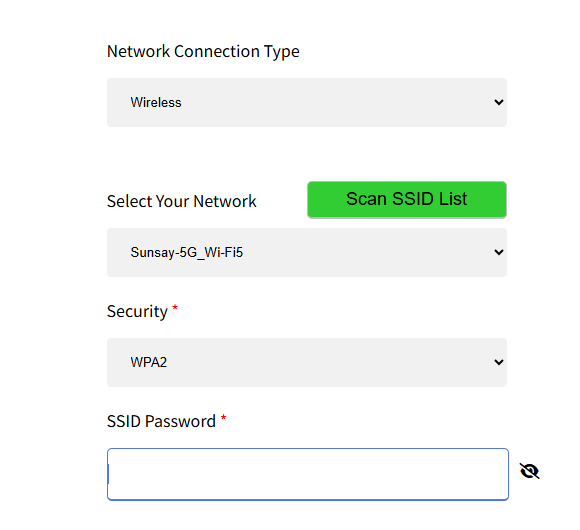
5. Save the settings and disconnect the Ethernet cable. Wait a few seconds.
→ LP10 will automatically join your WiFi network.
Still Having Trouble? We’re Here to Help.
If the above steps do not resolve the issue, please contact Arylic Support and provide:
-
LED indicator color/status
-
Phone model & LP10 serial number
-
App version number
Our team will help you diagnose and resolve the issue as quickly as possible.


